Posts

Strict Report

Image
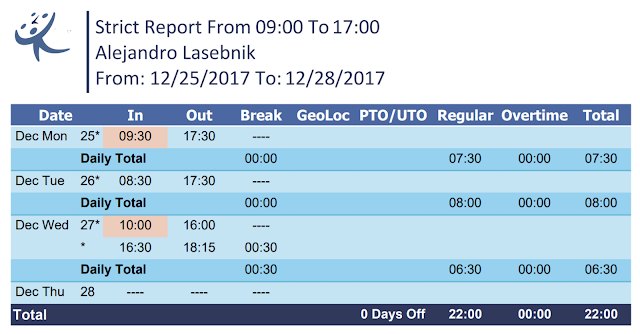
This special report is good for a company that needs to calculate employee work time effectuated only between the company working hours. This report calculation will truncate working time outside the working hours. As an example, if the company working hours are from 09:00AM to 05:00PM, and on a given day, an employee worked from 08:30 to 17:30 (a total of 9 hours), the report will only consider 8 working hours. This report will disregard the working time of the employee arriving early and/or leaving late. In order to be able to print out this kind of report, go to your admin portal (If you don't have an account you can create one now ) and click on the "Company Details" button. Here you will need to select the feature "Highlight exceptions on report" and select the strict exception.  Read more about exceptions on report here After selecting this feature you will be able to run the Strict Report from reports. Just click on the Reports button and...
Employee Scheduling

Image
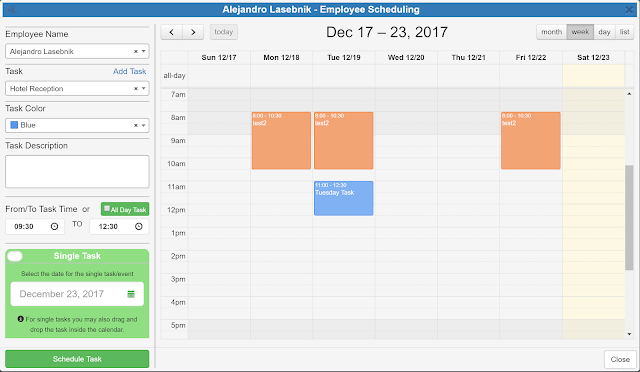
Emplotime offers an employee scheduling feature at no extra cost. As a manager you can manage your company schedules fast and easy. The employee scheduling process is really simple, you add the employee tasks in the Emplotime calendar and these will be shown at the employee clock page, this way, your employee will be able to see the tasks you have assigned for him. In order to schedule a new task, from your administrator portal, click on the "Company Details" button and then click on the "Manage Schedule" button. At this point the calendar will open and you only need to select the required employee to start scheduling tasks for him. If you have selected to "Show Calendar at Employee Clock Page" the employees will be able to click the "Calendar" button from the clock page and see whatever tasks you have assigned for him in the Emplotime calendar. Do you have questions? Contact the Emplotime support team . It is free!

How To Track Employees Who Work On Different Time Zones

Image
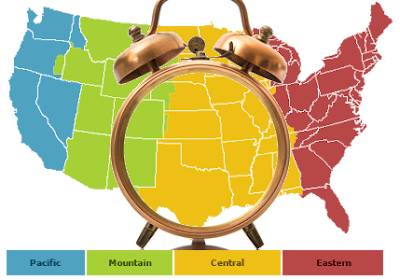
This is about simplifying time-tracking for companies that operate in multiple time zones. Our time clock solution allows you to authorize time clock use  at different locations by selecting the corresponding company branch. So if you have employees working on the pacific time zone area and others working on the eastern time zone area, you will designate the matching time clock for each location. If you haven't created your emplotime account yet, you can do this in seconds and for free. Start Your Emplotime Free Trial Now, let's explain step by step how you do it: STEP 1 of 3: CREATE YOUR COMPANY LOCATIONS Go to your administrative portal , and click on the Company Details button, and then click on the "Locations" button (At the Geolocation feature). See screenshot. Note: At this point, you don't need to select the Geolocation checkbox. The Geolocation checkbox will be selected only if you need to receive the geo-position of the employee...

Time Clock Time Format

Image
This small article explains how to change the time format of your company time clock between the 12hs time format (i.e.: 04:00 PM) to the 24hs time format (i.e.: 16:00). As any other feature, you select it from the company details from your administrative portal. After selecting your preferred format, all your company time clocks will be automatically updated to visualize the employee punches in the selected time format. Time Format Feature Selection The company time clocks will display the selected time format as shown below. See screenshots. 12hs Time Format 24hs Time Format Note: The time format feature will not affect the fixed time format for reports. Click to start a free trial on Emplotime

The 3 features any time and attendance application needs

Image
In this article, you will find the 3 item list of must have features that needed to be included in any time and attendance application  you can find on the web. And yes, I said web, since today all the best time clocks or time and attendance applications are in-the-cloud, so you actually don't need to install anything. All is accessible from your browser. Having said so, we need to understand now, the entities or building blocks of this kind of solutions. There are basically two. One managed by the employer and the other by the employee. From here, it is easy to understand that we are talking about the time clock, where the employees will be able to clock in and out, and the second block, which is the administrative portal where the employer can see the employee's time sheet, add employees, update transactions, print reports, etc.  Let's find out the must have features for any time and attendance! 1. Buddy Punch Lockout The buddy punch lockout, also called ...

Rounding to nearest minute

Image
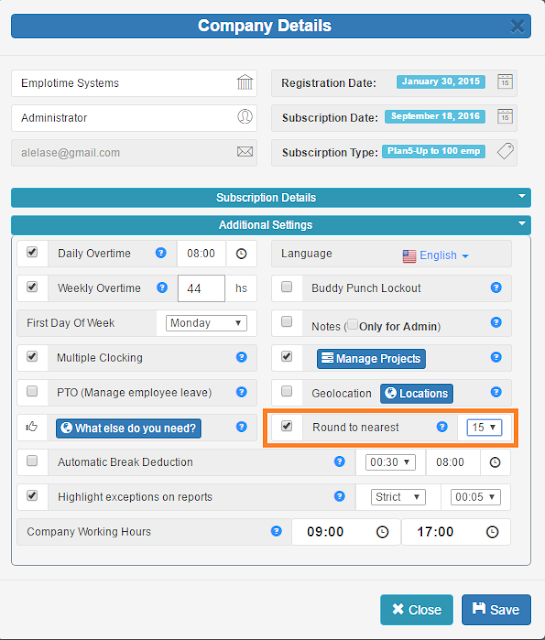
The rounding to nearest attendance feature, allows the administrator to obtain reports with rounded transactions and totals, to the nearest minute selected; it will be 5, 10, or 15 minutes. In order to apply this feature, select it from the "Additional Settings" within Company Details. See screenshot below. Round to nearest 15 minutes After selecting this feature, all reports will be printed out with the selected rounding. Check the transactions below to see how will be outputted without and with rounding selection, No rounding selected Rounding to nearest 15 minutes selected

Attendance Project Feature

Image
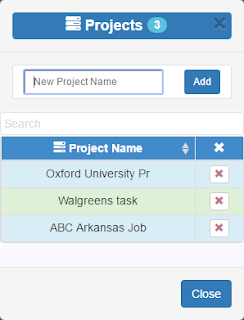
One of the biggest features just released on Emplotime version 3.4 is the Project Feature. After activating this feature, the employee will be able to report the project in which he is working on. So this will allows the administrator to print out detailed information of an employee working on different duties. In this short article, I will explain in three steps, the full flow from activating projects on Emplotime to print out the "By projects reports": STEP 1: Activate And Manage Projects STEP 2: How Employee Reports His Duties STEP 3: How Administrator Obtain This Info ...And now in detail STEP 1: Activate And Manage Projects Enter your  administrator portal , click on Company Details button and check the Manage Projects checkbox. See screenshot below. Then, click on the "Manage Projects" blue button and add the company projects/jobs/duties. See screenshot below. STEP 2: How Employee Reports His Duties Since the administrator se...

Emplotime iPhone or iPad App

Image
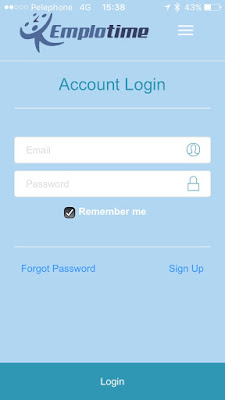
As an administrator, you are able to access your administrator portal from your iPhone mobile device. In order to use Emplotime as a standard app, you first need to open "Safari" browser, and go to https://www.emplotime.com , then click on login and click on the share button of the safari browser  (rectangle with an arrow pointing upward), finally click on "Add to home screen" to save the Emplotime icon just like any other app. The same process can be used to add the Emplotime Clock as an application for the employees. Let's see now, step by step, how you can achieve this easily... Step 1: Open Emplotime in Safari Open Safari app and browse to Emplotime at https://www.emplotime.com/ , then tap login and click on the share button. see screenshot below. Step 2: Add to Home Screen Search for the "Add to Home Screen" button and tap on it. The Emplotime icon will show up on your iPhone or iPad now! Step 3: Open the Emplotime App ...

Exception Reports

Image
Emplotime Version 3.3 is out! A new feature allows to highlight exceptions on all reports. You will be able to choose from two different exception types: 1) Strict 2) Global STRICT You may select Strict exception in case you require from your employees to arrive and leave at a specific time. So in case the employee arrives late, the reports will highlight the entry "on red" to know about the "Late Entry". see screenshot bellow. Late Entry In short, strict type will highlight "late entries" and "early exits". GLOBAL In the other hand, Global type will be selected when you only require from your employee to work a specified amount of working hours. In this case, the "total" will be highlighted if the employee works less than required. see screenshot bellow. Global Exception In order to configure the required exception, you only need to open the "Company Details" from the Administrator Portal, and se...

Night shifts overnight reports

Image
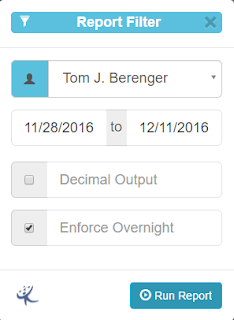
We are already working  on the Emplotime version 3.3 which apparently will include Projects and Exception Reports , however, in the meantime we have released a small version. The version 3.2 recently released is packed with some goodies related to employee working hours reports. This new feature is going to be very handy for those companies having employees working overnight. The filter reports now includes the possibility to check the "Enforce Overnight" checkbox. By selecting this checkbox, the output report will maintain the whole transaction within the same day. (Preventing of getting it separated in two different days). For example, if Tom clocked In on Wednesday at 10:00 PM, and clocked out at 05:00 AM in the following day, the entire transaction will be recorded for Wednesday.

Choose the features for our next version!

Image
We are providing all our customers the possibility to choose which of the features they will want to see coming out in our next version 3.2 We would like you to be part on the decision of our next features to be implemented on our time clock version 3.2 These are the following features we think you will be interested for our next version: Exception Reports: With this feature you will be able to see and print information about employees arriving late for work or going home early as an example. Projects: This feature will allow to create a bunch of projects. The employee will be able to choose from this list when clocking out, in order to inform on what project he is working. Later on, you as the manager or administrator will be able to run reports based on working projects. Spanish Translation: For our spanish speaker customers we might implement the complete translation of our site to spanish. Other: You may specify a particular feature youare interested for our next ve...

How to obtain reports for payroll purposes

Image
The emplotime version 3.1 provides the possibility to print and export all the time and attendance system reports with decimal output. In order to do this, select the wanted report from the administrator page, set the filter report and run it. Remember to select the Decimal Output checkbox in order to see all the report's total on decimal expression. Then, you could export the report to excel for further calculations or to be used by an external payroll system.

Absence Management

Image
Wouldn't it be nice to obtain employee attendance reports containing all the information of the PTO or employee absence on it? Well... Emplotime has just released its Version 3.0 which includes these fantastic and complete reports. From now on, the manager can manage PTO or employee's absence and print out or export this information for payroll purposes as an example. In order to activate this feature, within the Emplotime Administrator Portal , go to Company Details --> Additional Settings and select the PTO management checkbox. See image below. After selecting this feature, you will see a new "PTO Management" button when selecting an employee table row. Now, you can click this PTO management button to add PTO or absence days to the given employee. See image below. This absence information will be outputted to all the employee reports. See report sample image below. Whatch the self-explanotory video below! Sta...